
SMS integration for PRTG

Send SMS notifications from PRTG via SureSMS.
Integration to PRTG
Integrating SureSMS into PRTG monitoring software is easy. You can find information about PRTG here.
In SureSMS you need to do the following
- Create a SureSMS account if you haven't already done so. Click here to create an SMS Gateway account.
- Find your SureSMS login and password. You will need these in the setup in PRTG.
In PRTG, you need to do the following
- Go into "PRTG" and select "Setup -> Notifications".
- Go down to the "SMS" section.
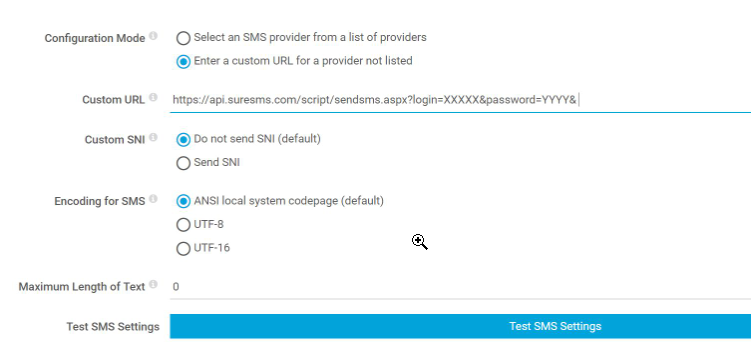
- Now you need to build a URL that corresponds to the one PRTG would like. Use the username and code that you received in an email in step 1.
- If you want to use PRTG as a sender ID, you must first apply for this sender ID. Once you have applied for PRTG as a sender ID, we will approve it and then you can use it.
See here, How to apply for a new sender ID.
You can also use your own phone number as the sender ID instead of PRTG.
URL and important settings
If you don't want to use PRTG as sender ID, remove &from=PRTG in the URL.
The URL you need to use looks like this:
https://api.suresms.com/script/sendsms.aspx?login=[this login]&password=[this password]&to=%SMSNUMBER&from=PRTG&Text=%SMSTEXT